
GoWind Shop Online Demo
GoWind Shop provides two online demo sites, so you can experience the core flows of buyer shopping and operations management in full without any local deployment.
Demo Sites
| Site | Address | Perspective |
|---|---|---|
| Storefront | https://shop.gowind.cloud | Buyer: browsing, ordering, orders, messages |
| Admin console | https://admin.shop.gowind.cloud | Operator: promotions, orders, inventory |
About the demo environments
- Demo data is reset periodically; orders, coupons, and other data you create may be cleared at any time. Do not store anything important in the demo environments.
- Demo accounts are not public. Contact
yang_lin_boon WeChat (note: go-wind-shop) or email yanglinbo@gmail.com to obtain one.
Tour 1: Storefront (Buyer Perspective)
We recommend walking through a complete shopping flow along this route:
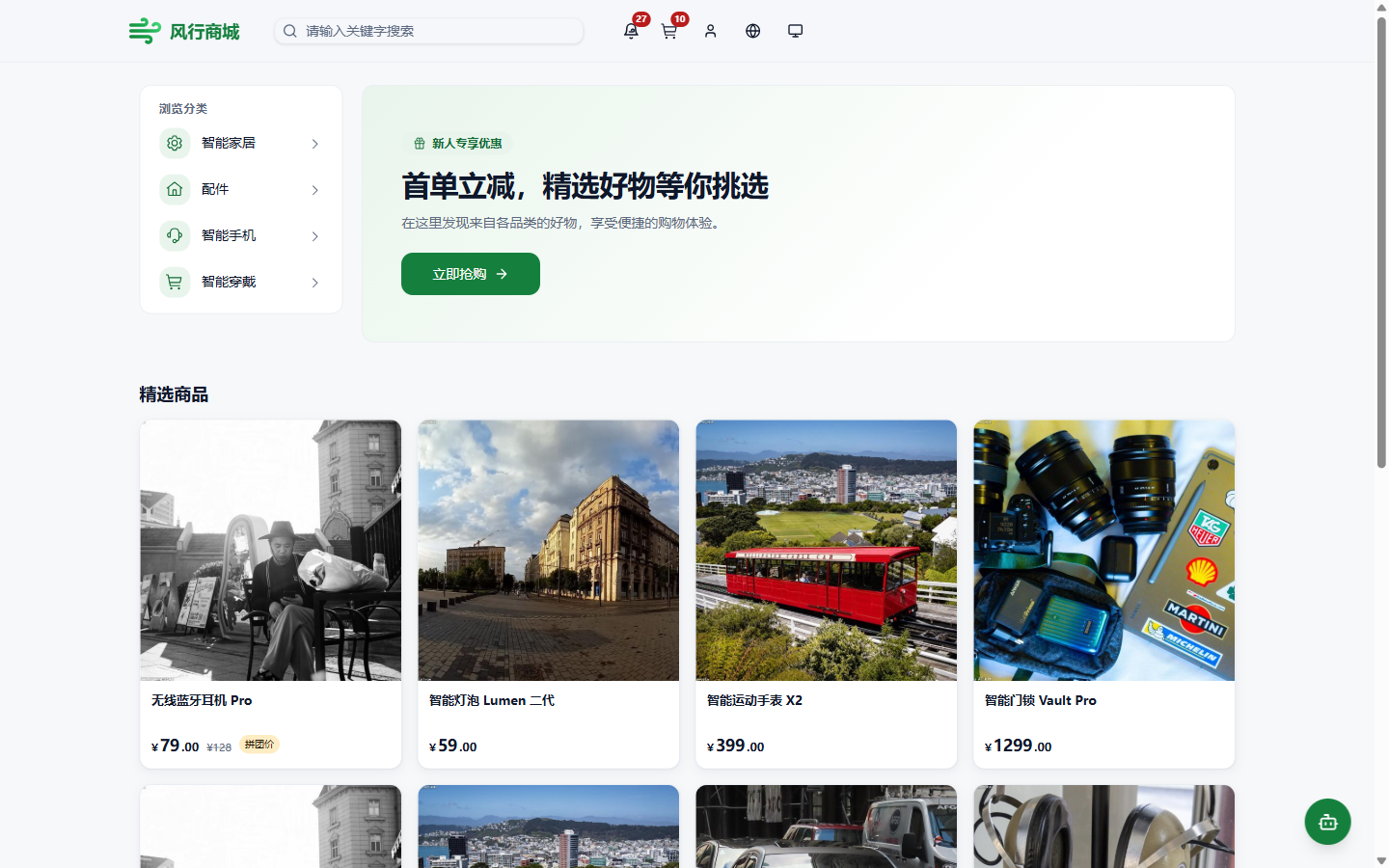
Step 1: Browse the Home Page and Categories
Open the storefront home page and browse the layout and category entries. The page supports light and dark themes plus language switching; on mobile, the fixed bottom navigation bar switches pages quickly.
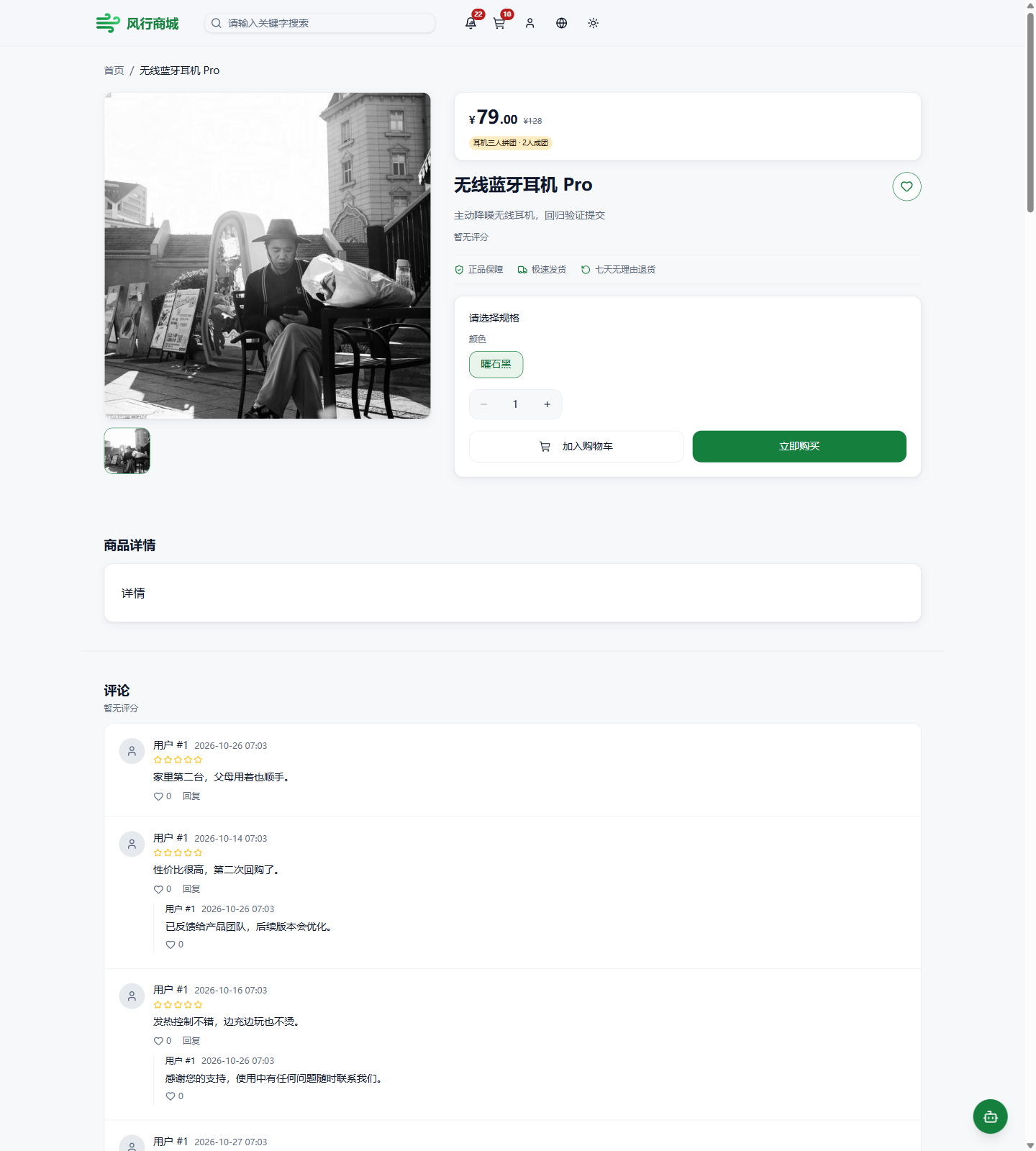
Step 2: View a Product and Its Group-Buying Price
Enter a product detail page from a category and pay attention to the promotional prices shown on products in group-buying and flash-sale activities, and how the unified pricing priority determines the actual selling price.
Step 3: Add to Cart and Place an Order
Pick a product variant, add it to the cart, and complete an order following the on-screen prompts. The platform includes a mock payment channel, so the whole flow never moves real funds.
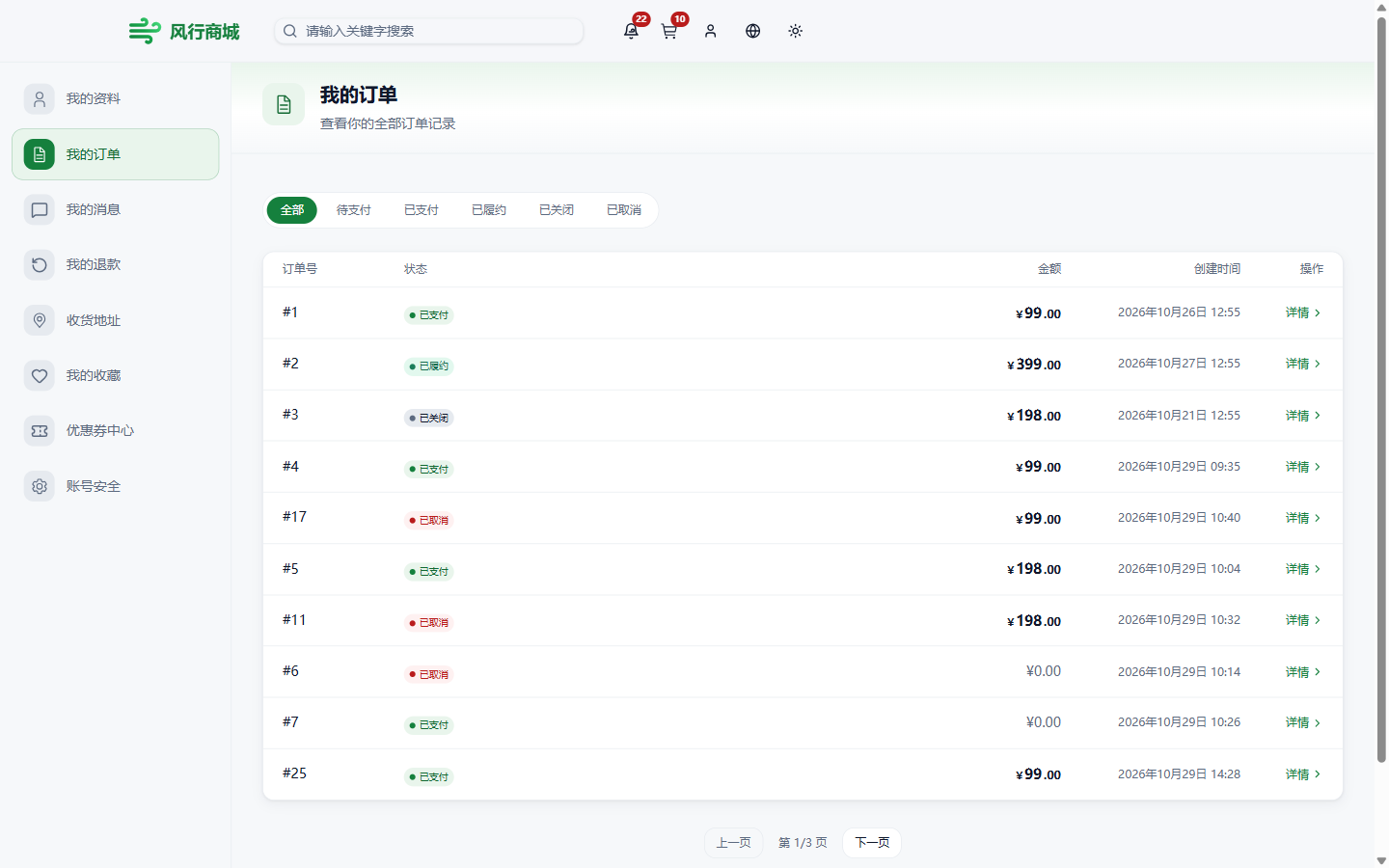
Step 4: View My Orders
Open "My Orders" to see the order you just created and its status transitions.
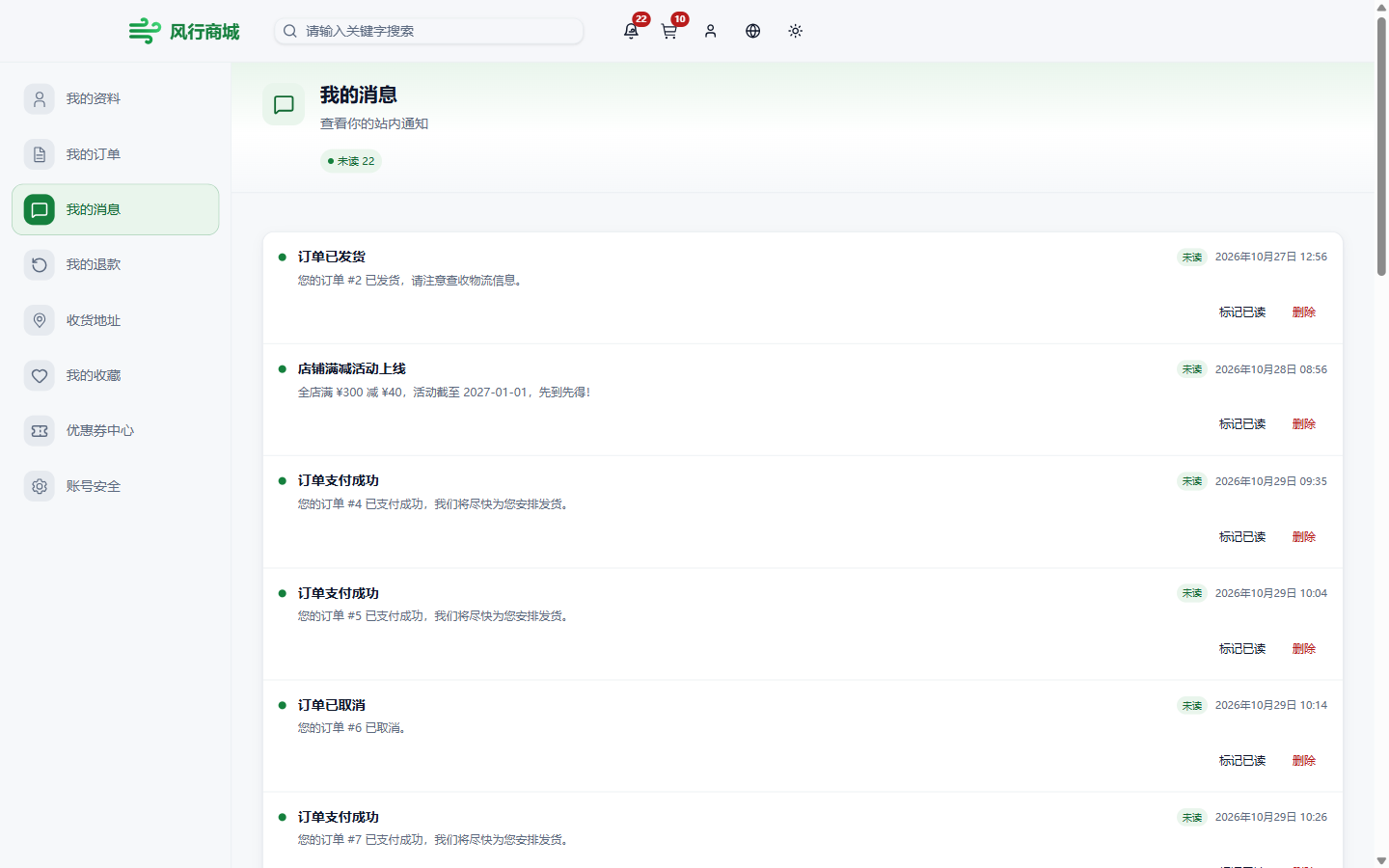
Step 5: Receive Message Notifications
Key milestones across the order lifecycle are sent to buyers via in-site messages — open the message center to see your order notifications.
Don't forget to switch theme and language
The storefront supports light and dark themes plus language switching. After finishing the shopping flow, switch both once to experience the multilingual content delivery and browsing under the dark theme.
Tour 2: Admin Console (Operator Perspective)
Sign in to the admin console with the demo account you obtained, and we suggest reviewing the following in order:
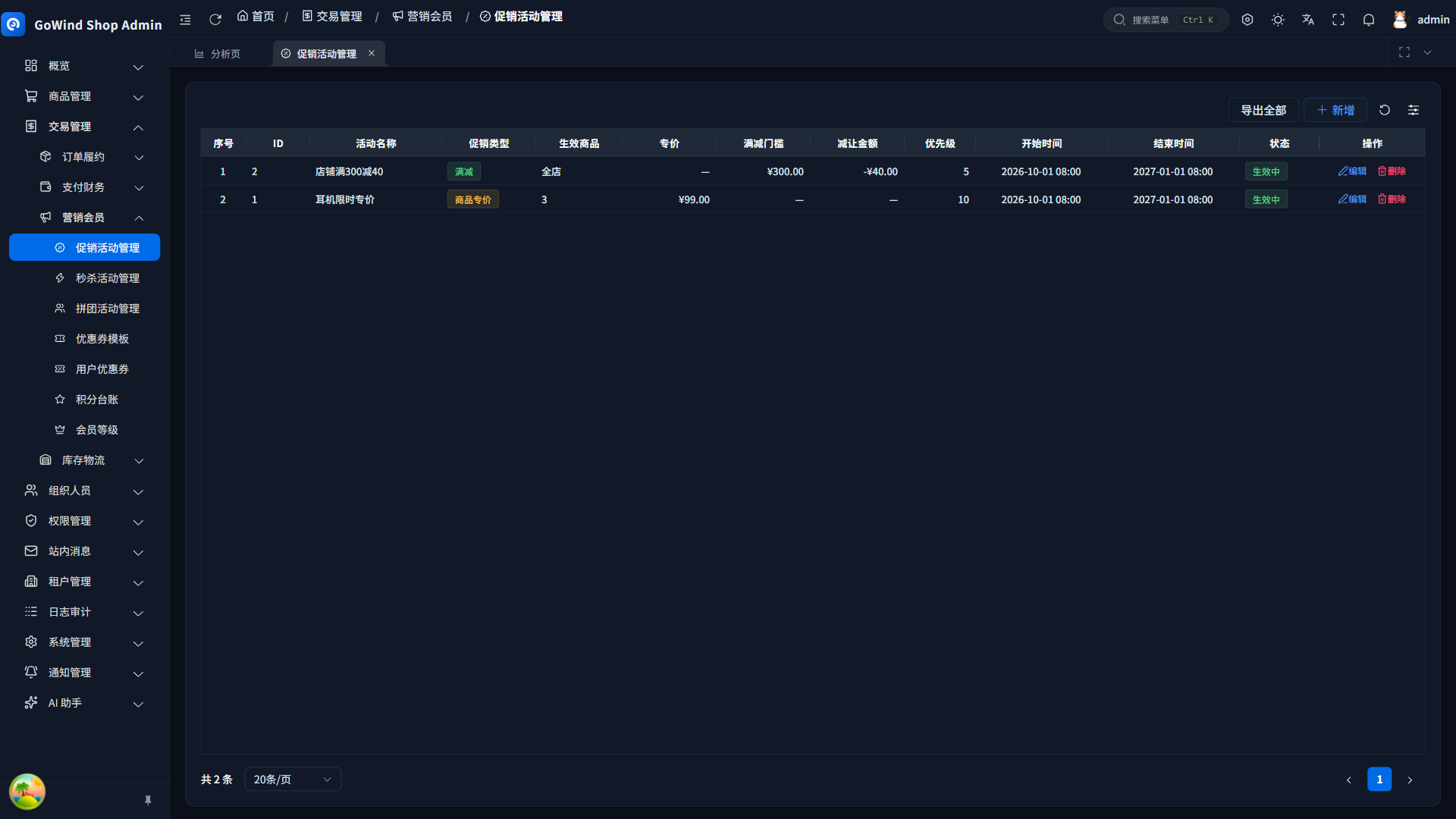
1. Promotions
Open the promotion management page to see how flash sales, group buying, and other activities are configured, and their statuses.
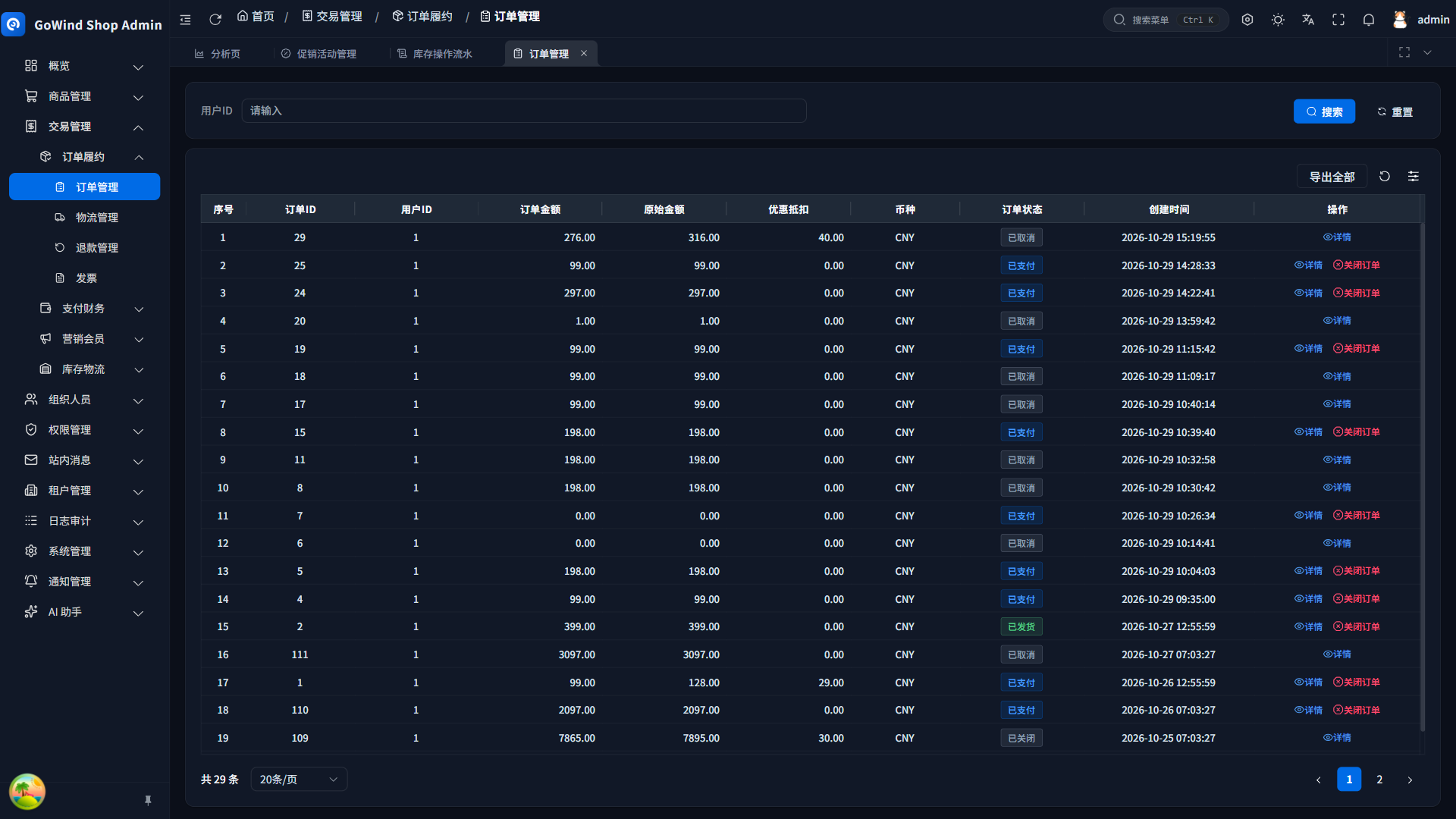
2. Order Management
Review the order list and status tags to see the order state machine visualized; status columns in all modules render as colored tags for quick filtering and locating.
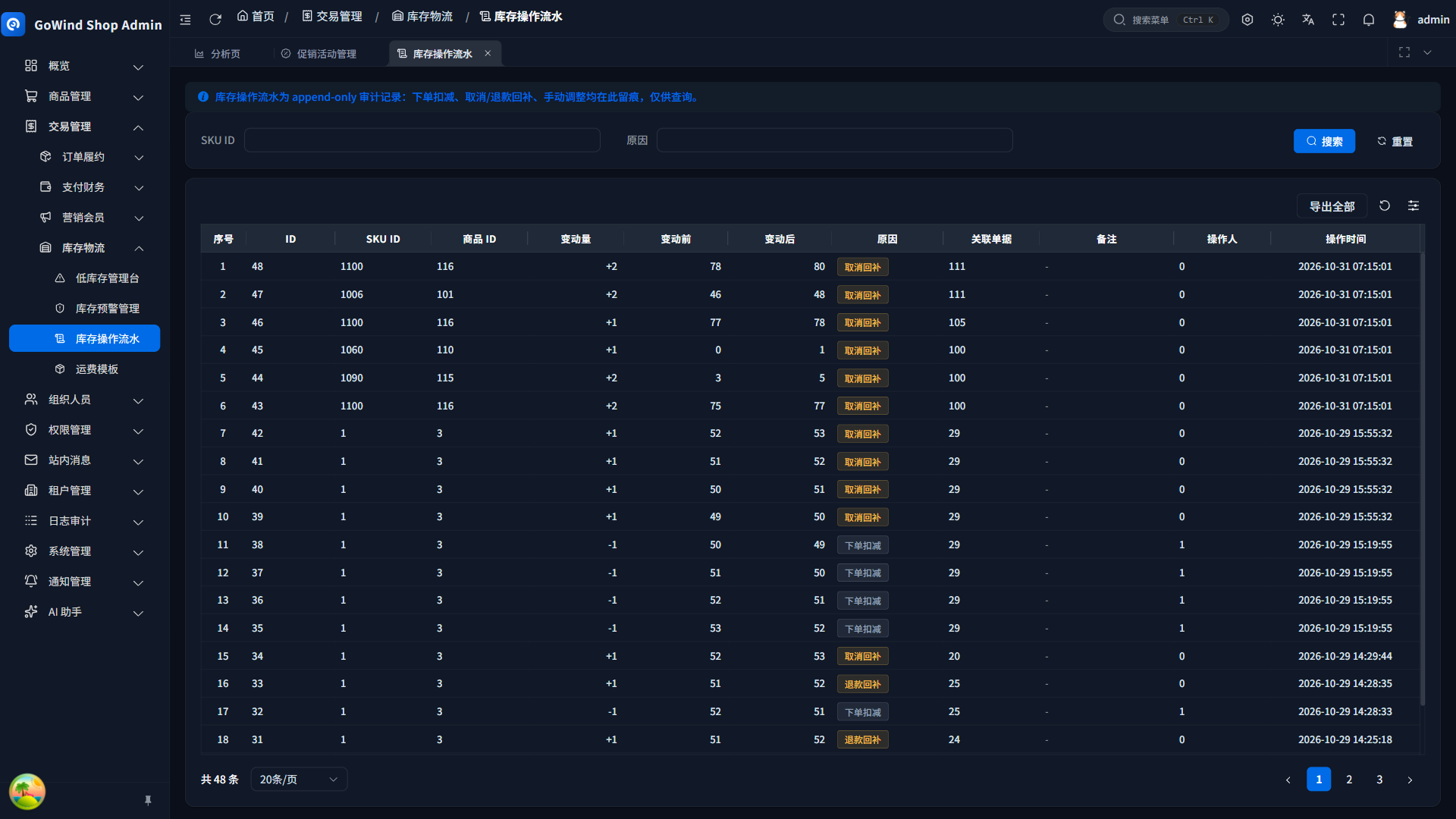
3. Inventory Logs
Open the inventory operation logs; every inventory change is recorded in an append-only log, traceable entry by entry.
More modules
Beyond these three modules, the demo console also opens products, coupons, membership, and more — walk through them alongside the Feature Manual.
Getting a Demo Account and Contacting Us
- WeChat:
yang_lin_bo(please include the note go-wind-shop) - Email: yanglinbo@gmail.com
- What you can get: demo accounts, product walkthroughs, and on-premise deployment and support plans
After your tour, return to the Feature Manual for detailed descriptions of each feature.